 |
|
Image
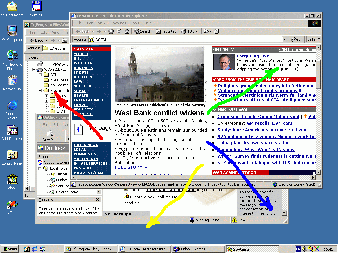
at the left hand side presents typical screenshot of desktop computer with several applications opened.
If scrape is running and enabled, and default setting
are used, mouse move shown by yellow arrow
minimizes all applications. Exactly in the same way as pressing Windows-D key
combination on keyboard. |
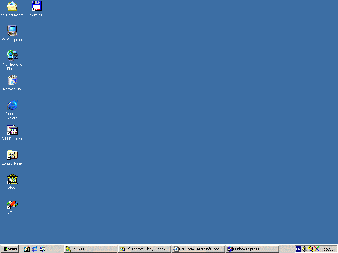
Now
all applications are minimized. To restore screen, repeat movement, similar to first
(yellow arrow). Exactly as pressing Windows-D next time.
Pay attention that all running applications are presented
by buttons on bottom task bar. |
|
 |
Movement
in blue arrow manner does almost the same as in green but you will see
blank taskbar (see image at the left hand side). Why?
Because all running applications become hidden. To make them visible
again just make movement shown by red arrow. |
Moving
in green arrow manner while right button pressed hides one application,
determined from the end point of moving. You can make hidden one selected
application or hide them one by one. Similar movement while left mouse button is pressed
restores hidden applications - one by one in opposite order.
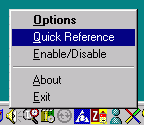
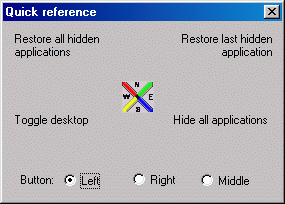
How to remember these rules or recall them? - Just right click on scrape icon on
traybar and select "Quick Reference": |
|
|
 |
The
described above is the idea. However scrape program can do a lot more. Using "Options"
menu makes possible to assign command line to proper scratch and call your favorite
program/s. Also it is possible to reprogram "scratch" properties reflecting your
habits and making conflicts with other applications less possible. You can define
minimal/maximal scratch length and duration customizing program to your habits you
and/or reprogram mouse buttons used for scratches. This can be very important. For
instance, if your favorite game is Solitaire, you don't want to recognize drag/drop
cards as scratch. So, clear all assignments for scratches with left button
down and assign them to right or middle button pressed scratches. Enjoy! |
|
   |
|
 Contact us Contact us
|